Step 1
- Open Microsoft Outlook 2007.
- NOTE: If this is the first time you have used Outlook 2007, you will be presented with a setup wizard. If so, skip to Step 4.
Step 2
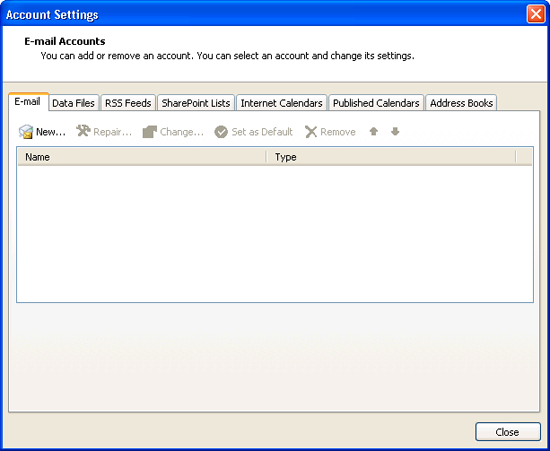
- Click on Tools in the menu bar, then click Account Settings…
Step 4
- Select the checkbox Manually configure server settings or additional server types, then click Next

Step 5
- Select Internet E-mail, then click Next

Step 6
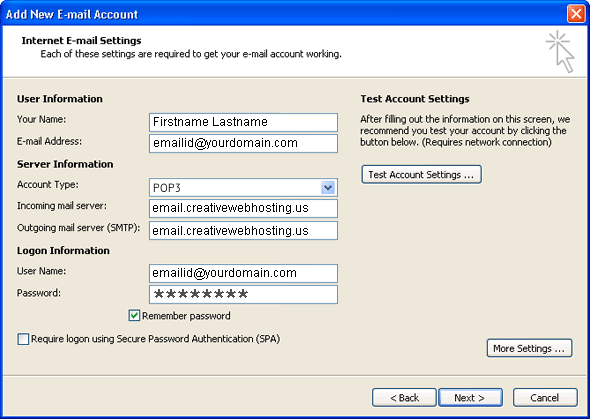
- In the Your Name field, type your given name or business name – this is how your name appears when people receive email from you.
- In the E-mail Address field, type your Creative email address, e.g., emailid@yourdomain.com
- For the Account Type, Select POP3.
- In the Incoming mail server field, type email.creativewebhosting.us
- In the Outgoing mail server field, type email.creativewebhosting.us
- In the User Name field, type your Creative username (emailid@yourdomain.com)
- In the Password field, type in the corresponding password for your username.
Step 7
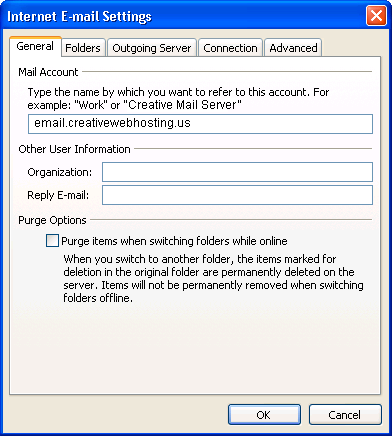
- Click the More Settings… button. The Internet E-mail Settings window will open.
- Click the Outgoing Server tab at the top of the window.
Step 8
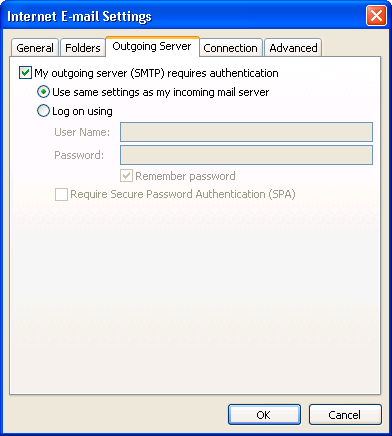
- Click the checkbox next to My outgoing server (SMTP) requires authentication.
- Ensure Use same settings as my incoming mail server is selected.
Step 9
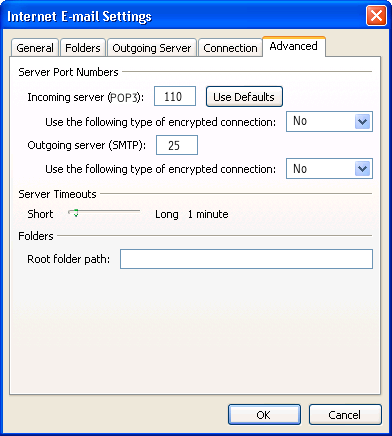
- Click the Advanced tab at the top of the screen.
- Underneath Incoming server (POP3) set Do not Use the following type of encrypted connection to SSL.
- Underneath Outgoing server (SMTP) set Do not Use the following type of encrypted connection to SSL.
- Next to Outgoing server (SMTP) change the number to 25.
- Next to Incoming server (POP3) change the number to 110.
- Click OK to return to the wizard.
Step 10
- Click the Finish button to complete the Add New E-mail Account wizard.
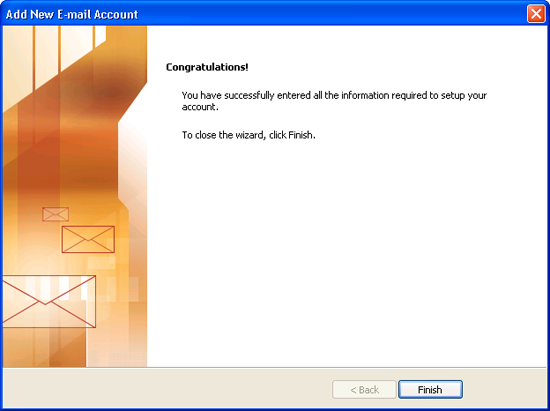
Congratulations! Microsoft Outlook 2007 is now configured for use.