01. Enable POP in your webmail account.
02. Open Eudora Eudora 5.1 (Light Mode)
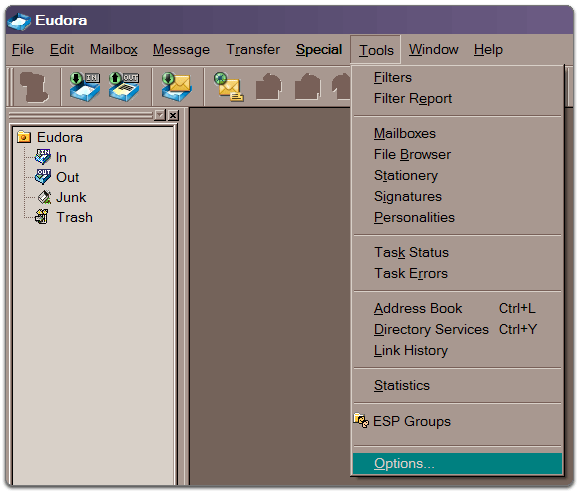
03. Click Tools > Options..
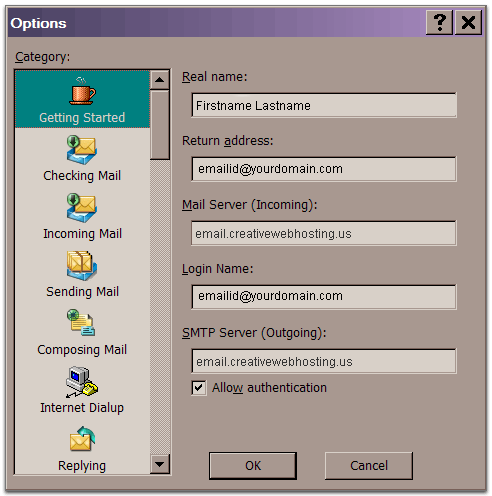
04. Click Getting Started from the Category list.
Enter your full name in the Real name field.
Enter your full webmail email address (emailid@yourdomain.com)
in the Return address field.
Enter email.creativewebhosting.us in the Mail Server (Incoming) field.
Enter your webmail username (emailid@yourdomain.com) in the
Login Name field.
Set the SMTP Server (Outgoing) to email.creativewebhosting.us and select Allow authentication.
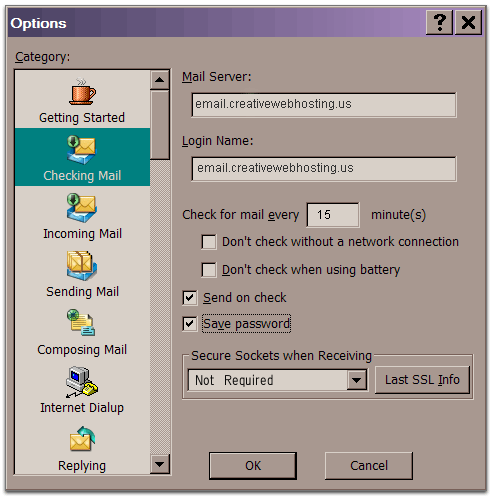
05. Select Checking Mail from the Category list.
Your information should be prepopulated based on your Getting Started settings.
Set Secure Sockets when Receiving to Required, Alternate Port.
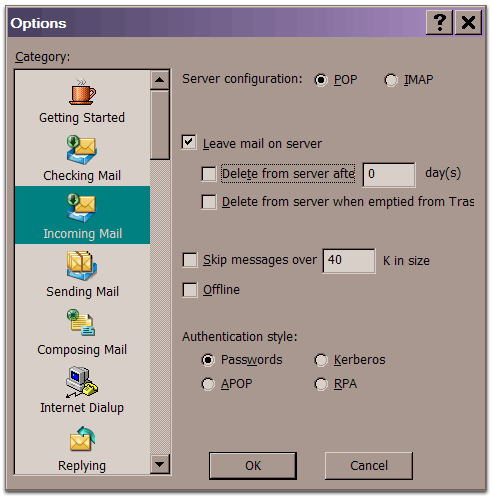
06. Select Incoming Mail from the Category list.
Ensure that the Leave mail on server and Skip messages over 40K in
size options are not checked.
Select Passwords for Authentication Style.
07. Select Sending Mail from the Category list.
Check the box next to Allow authentication.
Set Secure Sockets when Sending to Required, Alternate Port and click OK.
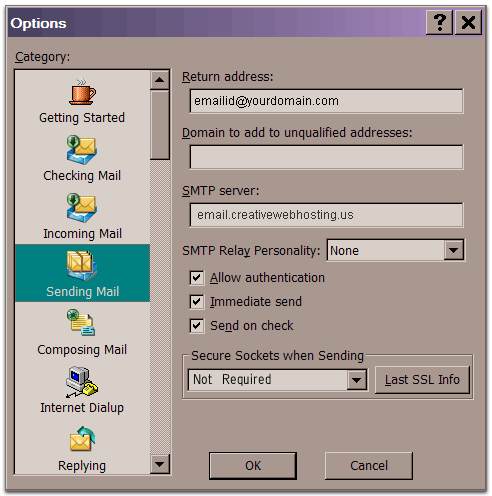
08. Click OK and then verify your settings by clicking File > Check Mail.
Troubleshooting tips:
Did you click Save Changes after enabling POP in webmail? To ensure that webmail can communicate with your mail client, be sure to click Save Changes on the webmail Mail Settings page.
Are you seeing a 'certificate error'? Read our help article dedicated to fixing this problem.